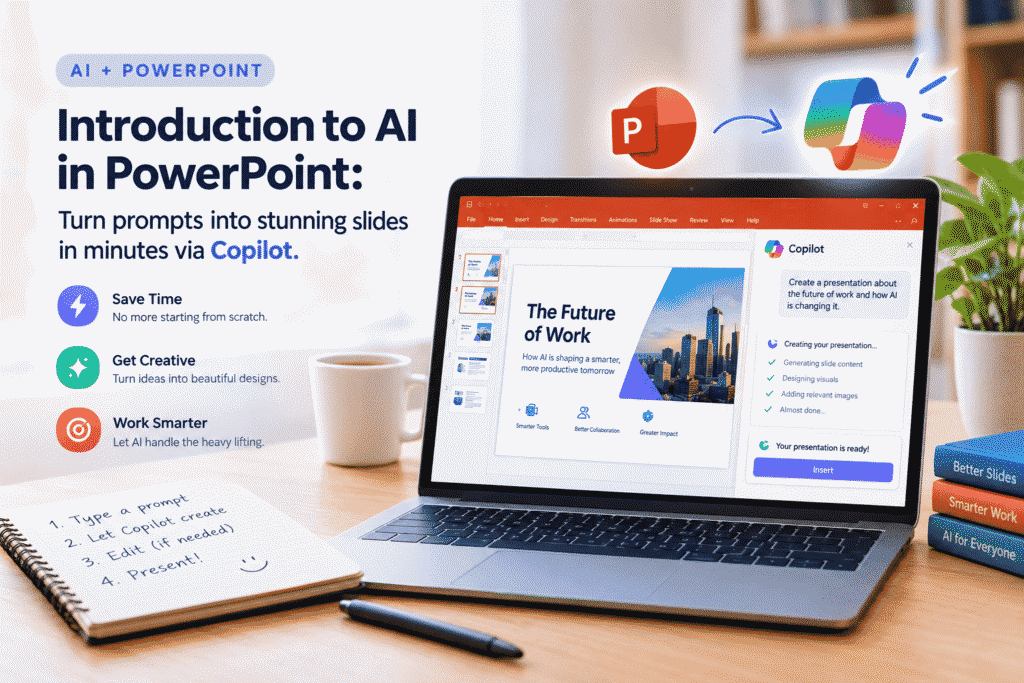
Introduction to AI in PowerPoint: Turn Prompts into Stunning Slides in Minutes via Copilot
Creating a professional PowerPoint presentation can take a surprising amount of time. You need to think about the structure, write the content, choose visuals, arrange slides, and make sure everything looks consistent. What if you could reduce much of that work to a few simple prompts?
That is where AI in PowerPoint and Microsoft Copilot can make a real difference.
With the right prompts, Copilot can help you turn an idea into a presentation much faster, giving you a starting point that you can review, edit, and personalize. You don’t need to be a professional designer to create slides that look polished and organized.
What Is AI in PowerPoint?
AI in PowerPoint refers to using artificial intelligence to assist with different parts of the presentation-making process.
Instead of starting with a blank slide, you can describe what you want. AI can then help you develop presentation content, organize ideas, improve wording, and create a more structured slide deck.
For example, imagine you need a presentation about “The Future of Digital Marketing.”
Instead of spending an hour deciding what slides you need, you could start with a prompt such as:
“Create a 10-slide presentation about the future of digital marketing for small business owners. Include current trends, practical examples, benefits, challenges, and a conclusion.”
This gives you a useful starting point that you can refine.
What Is Copilot in PowerPoint?
Microsoft Copilot brings AI assistance directly into Microsoft’s productivity ecosystem. When available in PowerPoint, it can help users work with presentation content using natural-language instructions.
The important part is that you don’t have to write complicated commands. You can explain your goal in everyday language.
For example:
“Create a presentation about online learning for university students.”
Or:
“Make this slide shorter and easier to understand.”
Or:
“Suggest three visual ideas for this slide.”
The more clearly you explain what you want, the easier it becomes to get a useful result.
Why Use AI to Create Presentations?
The biggest advantage is not simply that AI can create slides. It’s that AI can help you spend more time on the ideas and less time on repetitive work.
1. Save Time
Starting from a blank presentation can be difficult. AI gives you a starting point so you don’t have to build everything from scratch.
2. Organize Your Ideas
Sometimes you know your topic but don’t know how to structure it. AI can help break a broad idea into sections, talking points, and individual slides.
3. Generate First-Draft Content
Writing every heading and bullet point manually takes time. Copilot can help create an initial draft that you can then review and improve.
4. Improve Existing Slides
AI can also be useful when you already have a presentation. You can ask for help simplifying text, restructuring information, or making a slide easier to follow.
5. Help You Think Creatively
AI can suggest alternative approaches, examples, headlines, explanations, and visual concepts when you’re stuck.
The Secret Is Better Prompts
One of the most important things you’ll learn when working with AI is that the quality of your prompt matters.
A vague prompt might produce a generic presentation:
“Make a presentation about marketing.”
A more specific prompt gives the AI much more useful direction:
“Create a 10-slide presentation about social media marketing for small businesses. The audience is beginner business owners. Use simple language and include practical examples, common mistakes, and five actionable tips.”
Notice how the second prompt provides:
- A topic
- Number of slides
- Target audience
- Skill level
- Writing style
- Specific sections to include
These details help guide the AI toward a more relevant result.
A Simple Prompt Formula
You can use this simple formula when creating prompts:
Topic + Audience + Goal + Format + Style + Key Points
For example:
“Create a 12-slide presentation about AI in education for college teachers. Explain the benefits, practical applications, challenges, and future opportunities. Use a professional but easy-to-understand style with short bullet points and examples.”
This approach is useful because it gives the AI context rather than simply naming a topic.
AI Doesn’t Replace Your Judgment
This is an important point.
AI can help you create a presentation, but you should not simply accept everything it produces without checking it.
Always review the generated presentation for:
- Accuracy
- Spelling and grammar
- Outdated information
- Repetition
- Unnecessary content
- Visual consistency
- Audience relevance
- Sources and important facts
Think of Copilot as a creative assistant, not a replacement for your own judgment.
You bring the experience, context, and final decision-making. AI helps you move faster.
From Prompt to Presentation
A typical workflow can be surprisingly simple:
Step 1: Start With Your Goal
Decide what you want your audience to learn or understand.
Step 2: Write a Clear Prompt
Tell Copilot the topic, audience, length, tone, and important points.
Step 3: Generate a First Draft
Let AI create a starting point for your presentation.
Step 4: Review the Slides
Read through every slide and identify anything that needs correction or improvement.
Step 5: Personalize the Presentation
Add your own examples, branding, images, data, stories, and insights.
Step 6: Practice Your Delivery
A beautiful presentation is only part of the process. You still need to communicate the ideas clearly.
Who Can Benefit From This?
AI-powered PowerPoint workflows can be useful for many people, including:
Students — Create presentation drafts for projects and assignments.
Teachers — Develop lesson presentations and classroom materials.
Business Professionals — Prepare reports, proposals, and meeting presentations.
Marketers — Turn campaign ideas and research into presentation-ready content.
Entrepreneurs — Create pitch decks and business presentations more efficiently.
Freelancers and Content Creators — Quickly turn ideas into polished visual presentations.
Final Thoughts
Creating PowerPoint presentations doesn’t have to begin with a blank screen.
With AI and Copilot, you can start with an idea, describe what you need, and use that output as the foundation for a professional presentation. The real skill is learning how to communicate your requirements through effective prompts and then applying your own creativity and judgment to the result.
That’s exactly what makes “Introduction to AI in PowerPoint: Turn prompts into stunning slides in minutes via Copilot” a useful starting point for anyone who wants to work smarter with presentations.
The goal isn’t to let AI do everything for you.
It’s to use AI to handle more of the repetitive work so you can focus on better ideas, better storytelling, and better presentations.
